Provided by Filter
First, log into your MackinVIA Administrator account with your Mackin.com email address and password.
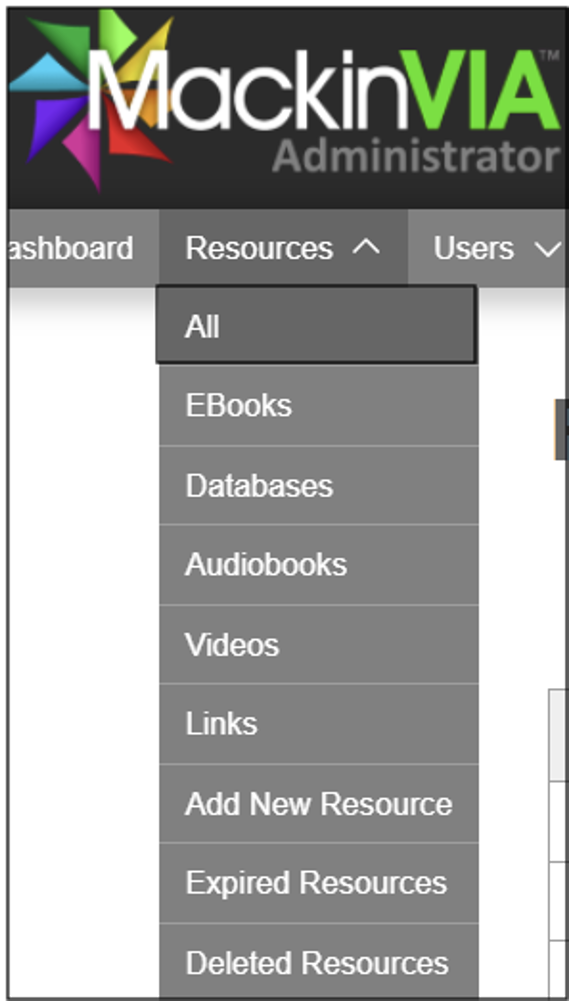
To easily identify titles that were purchased by your shared digital collection, choose Resources > ALL (make sure you select the correct VIA if there is more than one account).
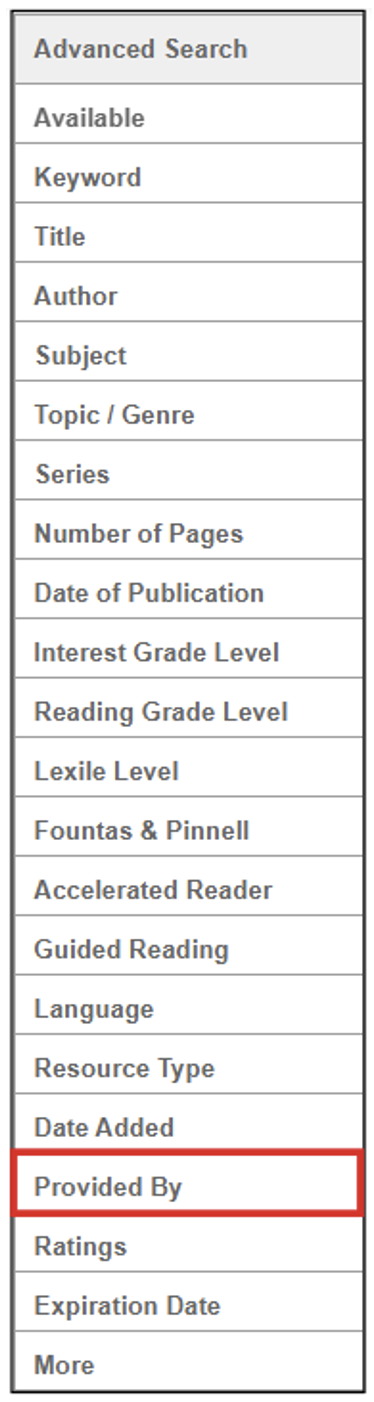
Under Advanced Search select Provided By.
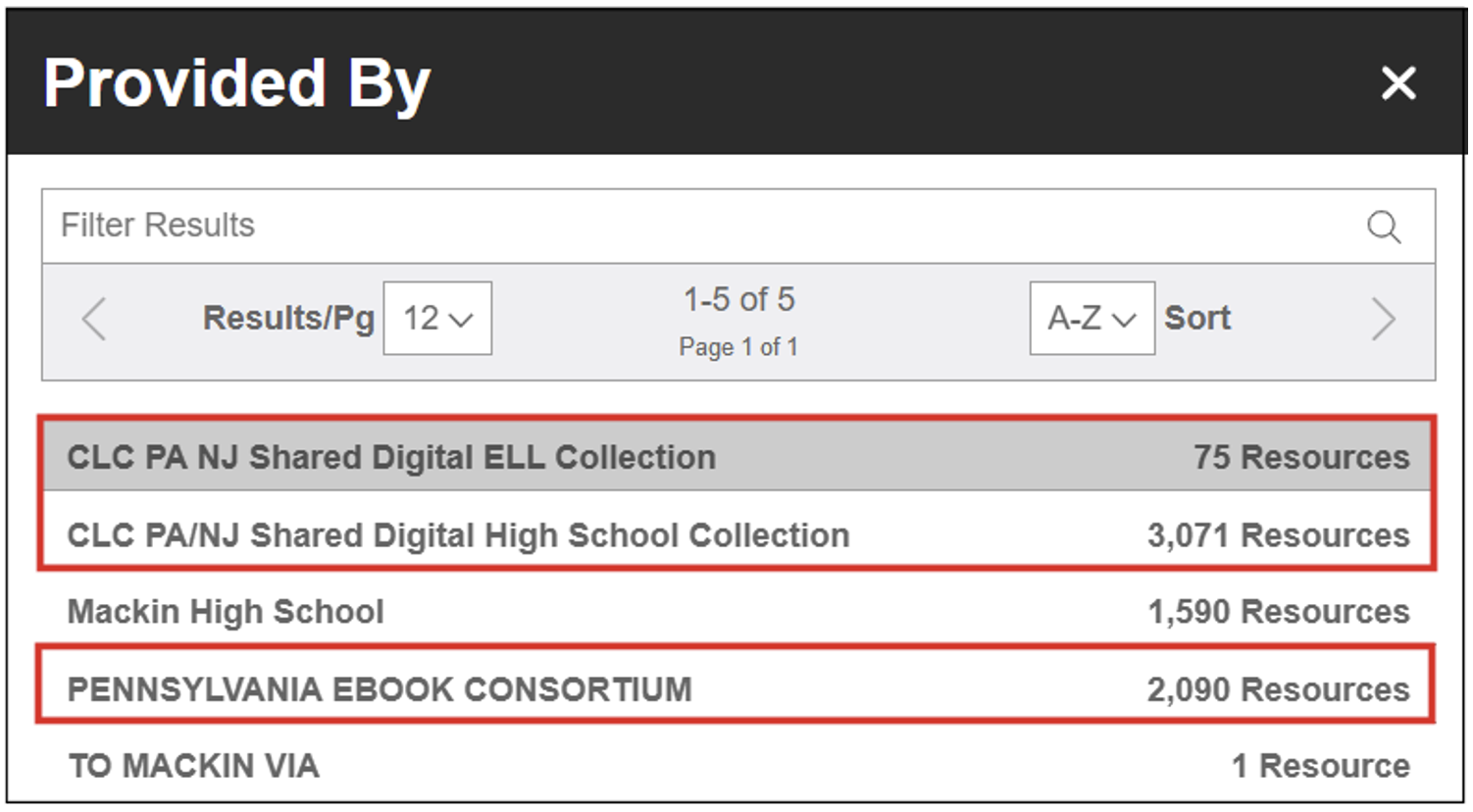
Look for terms like shared digital collection or consortium. (You may see variations in the Provided By name for your consortium if you have been a long-time participant. For example, older CLC titles are provided by Pennsylvania eBook Consortium. Newer CLC titles are provided by CLC PA/NJ. Hoosier-Buckeye titles may appear as provided by Indiana Ohio Shared, Ohio Shared or Indiana Digital Consortium depending on how long your school has participated.)
Usage Reports & Expired Resources
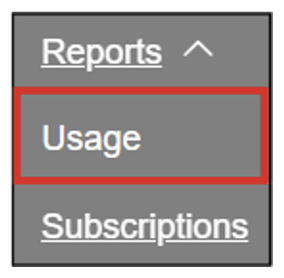
To easily identify expired resources, log in to your administrative account. Choose Reports > Usage.
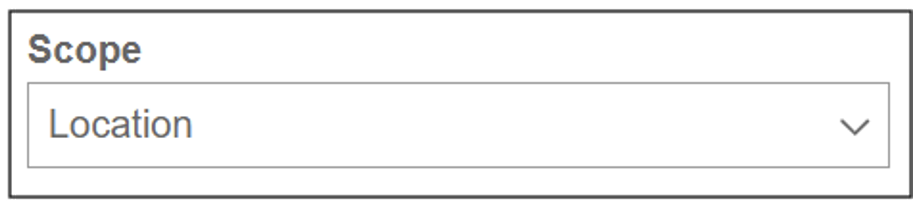
Adjust the parameters as you like, although default settings work fine here. Make sure Scope is set to Location
Select Export or View Report.

Sort by Status. (If you have a lot of titles, Export the report and use Excel sorting to identify only EXPIRED resources. The browser report only allows users to sort Status by A-Z or Z-A so those with an EXPIRED status get buried in the middle.)

(Please note, the Subscription Report separates out all the renewals into separate line items. That report may show a title as being Expired and also as being Current. The Usage Report combines multiple purchases of the same title that are from the same publisher and vendor and are the same item type into one line item on the report. If it shows as Expired on the Usage Report, there are no copies of that title + publisher + vendor + item type currently available in your VIA.)
Combined Licenses & Resource Details
If you want to see when a specific title is going to expire or a purchase history of a title, log into your MackinVIA administrator account.
Choose Resources > ALL.
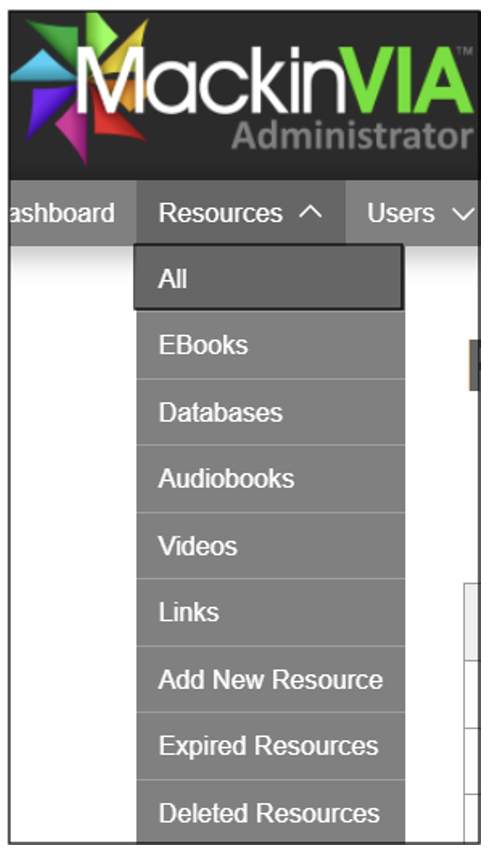
Once you have found the title you are looking for, click on the title name. This will pull up the Resource Details.

Scroll down to the bottom of the Resource Details page to the Additional Details section. Press the down arrow to expand this section.
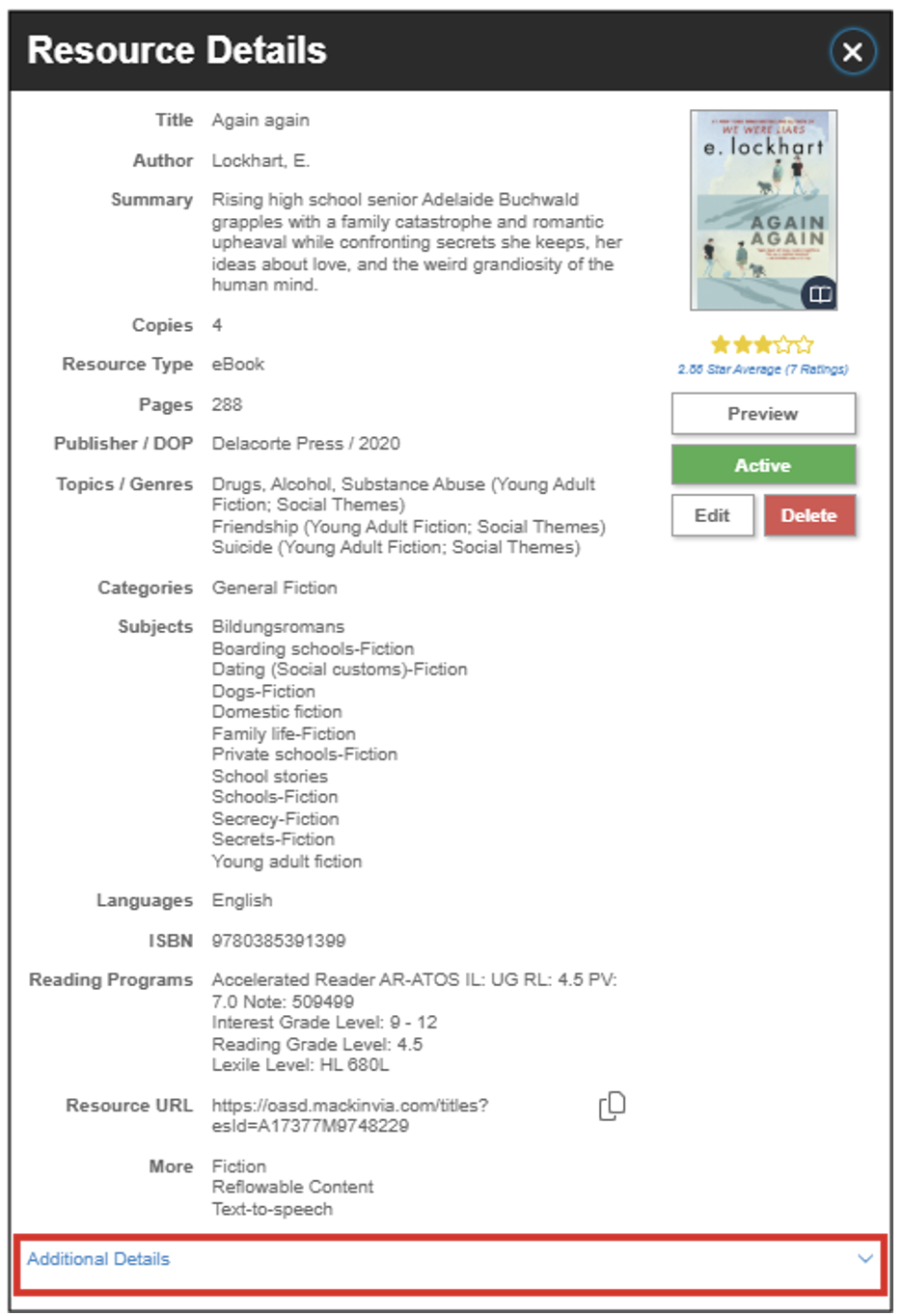
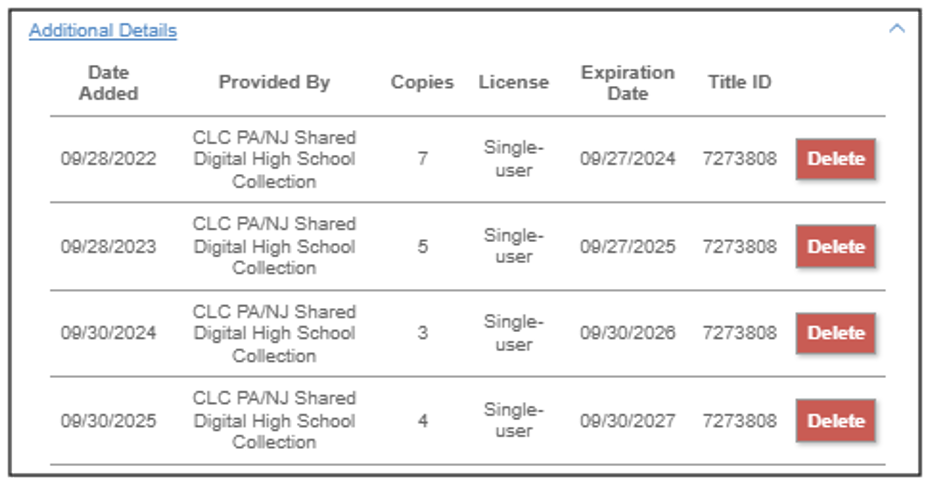
The Additional Details section will show all purchases of the title, including Date Added, Provided By, License (either multi-user or single-user), Expiration Date and Title ID.