MackinVIA Administrators can restrict access to specific titles for individual users using the Block Resources feature.
To block resources, log into your MackinVIA Administrator account (https://www.mackinvia.com/Admin) with your Mackin.com email address and password.
Go to Users > Backpacks (make sure to select the correct VIA if you have administrator rights to more than one account).
Search for and select the desired user.
From the User Activity page, click Block Resources.
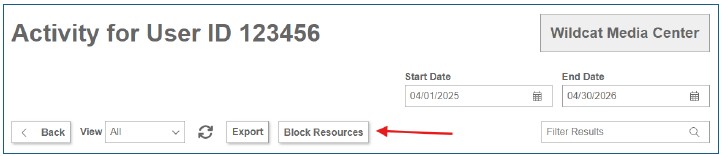
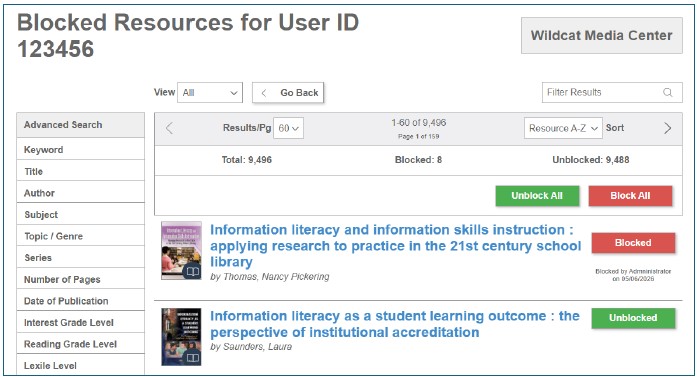
The Blocked Resources page works similarly to other resource pages and includes Advanced Search filters to help you locate specific titles. Any resource type can be blocked; however, users may be able to access third party resources through other methods outside of MackinVIA. Additionally, both active and inactive resources can be blocked.
Blocking or Unblocking Resources
- To block a resource, click the Unblocked button next to the title.
- The status will change to Blocked, and your name and the date will be recorded.
- To unblock a resource, click the button again.
- To block or unblock multiple resources at once, select the desired action and confirm when prompted.
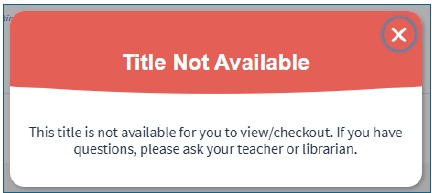
Blocked resources remain visible in MackinVIA but cannot be opened, checked out, or requested. Users will see a message indicating that access has been restricted.
Additional Notes
- If a title is blocked after it has been checked out, it will remain in the user’s checkout list but cannot be opened.
- If a title is blocked after being requested or placed on hold, the request will be automatically canceled.
- If an assigned title is blocked, it will remain in the user’s assignments list but cannot be opened.
- Previews are not blocked.
- Embedded videos will not display when blocked.
- Blocked titles are managed at the school/account level. If a user moves to a different school/account, titles will need to be blocked again.