To skip to a subsection of this topic, choose from the links below.
Usage Reports for Multiple Locations
Usage Reports for Single Location
Usage Reports Statistics
Usage Reports for Assigned Resources
Usage Reports for Multiple Locations
To run a usage report for multiple locations, log into your MackinVIA Administrator account with your Mackin.com email address and password.
Go to Reports > Usage. (Please note: You can run this report from any of your VIA accounts.)

Select All from the Scope dropdown menu.

Select the date range you want analyzed. Click on the calendar icons to open the calendars.
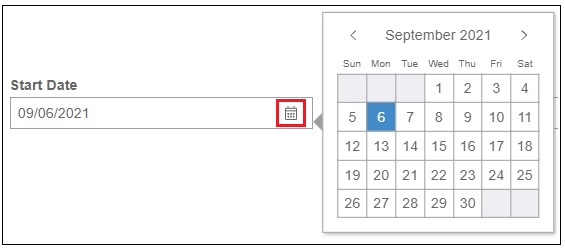
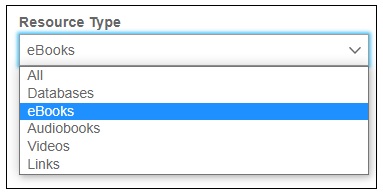
Choose whether you want to view statistics for Databases, eBooks, Audiobooks, Videos, or Links under Resource Type. Select All if you want to run a report for all of the resources in the MackinVIA accounts. To select multiple items or deselect items, use the CMD (Mac) or CTRL (PC) key.
Finally, select how you would like to view the report. You can either open the report in Microsoft Excel using the “Export All” button or you can view the report on the screen using the “View Report” button.

For detailed information regarding the statistics available in Usage Reports, please see Usage Report Statistics.
Usage Reports for Single Location
To run a usage report for a single location, log into your MackinVIA Administrator account (https://www.mackinvia.com/Admin) with your Mackin.com email address and password.
Go to Reports > Usage (make sure you select the correct VIA if there is more than one account).
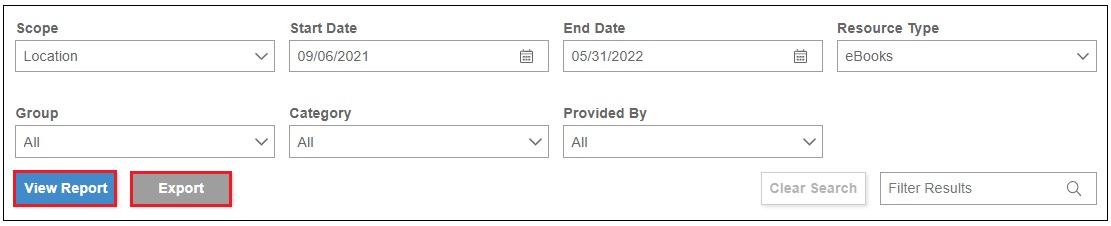
Select Location from the Scope dropdown menu.

If you want to run a report for a specific Group, choose from the Group dropdown menu. Select All if you want to run a report for all of the Groups in the MackinVIA account.

If you want to run a report for a specific Category, choose from the Category dropdown menu. Select All if you want to run a report for all of the Categories in the MackinVIA account.

If your school has access to titles purchased by multiple entities and you would like to run a report to see which titles were provided by a specific entity, choose from the Provided By dropdown menu. Select All if you want to run a report with all the titles in your VIA.

Select the date range you want analyzed. Click on the calendar icons to open the calendars.
Choose whether you want to view statistics for Databases, eBooks, Audiobooks, Videos, or Links under Resource Type. Select All if you want to run a report for all of the resources in the MackinVIA account. To select multiple items or deselect items, use the CMD (Mac) or CTRL (PC) key.
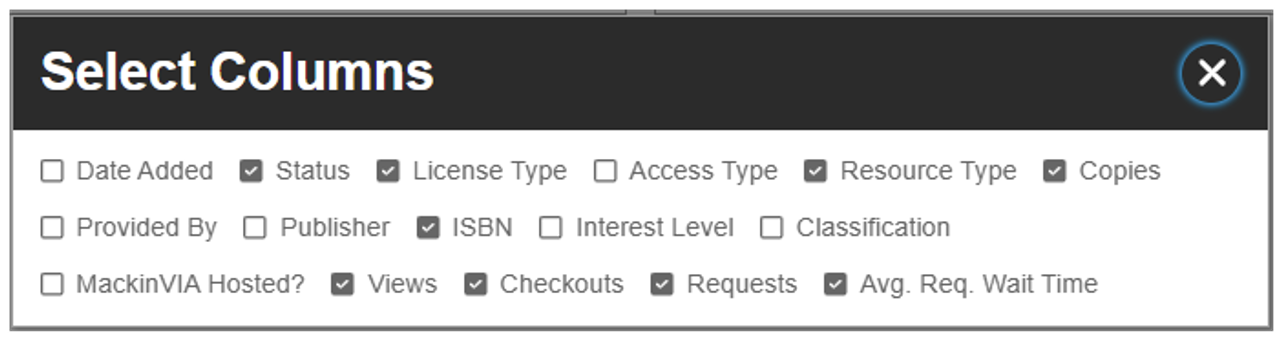
Easily modify the report by clicking on Select Columns. The report will default to include Status, License Type, Resource Type, Copies, ISBN, Views, Checkouts, Requests, Avg. Req. Wait Times, but you can check and uncheck the boxes to adjust the information that is included. Please note, this feature is only available for single location reports.
Finally, select how you would like to view the report. You can either open the report in Microsoft Excel using the “Export All” button or you can view the report on the screen using the “View Report” button.
For detailed information regarding the statistics available in Usage Reports, please see Usage Report Statistics.
Usage Reports Statistics
MackinVIA™ tracks logins and digital resource usage. Administrators have access to a proprietary report engine with the ability to run Usage Reports for a single location or multiple locations. All statistics are calculated instantaneously. Reports do not contain information on individual patrons; however, an aggregate of guest and anonymous individual logins are tracked and included. Reports can be viewed on the screen or exported to Microsoft Excel for further analysis.
Multiple purchases of the same title that are from the same publisher and vendor and are the same item type will combine into one line item on the report. The date added will reflect the date the first license was purchased, and the number of copies will be a sum of all available licenses or display as a multi-user if one is available. The access type will default to perpetual as long as there is at least one perpetual license.
Single Location:
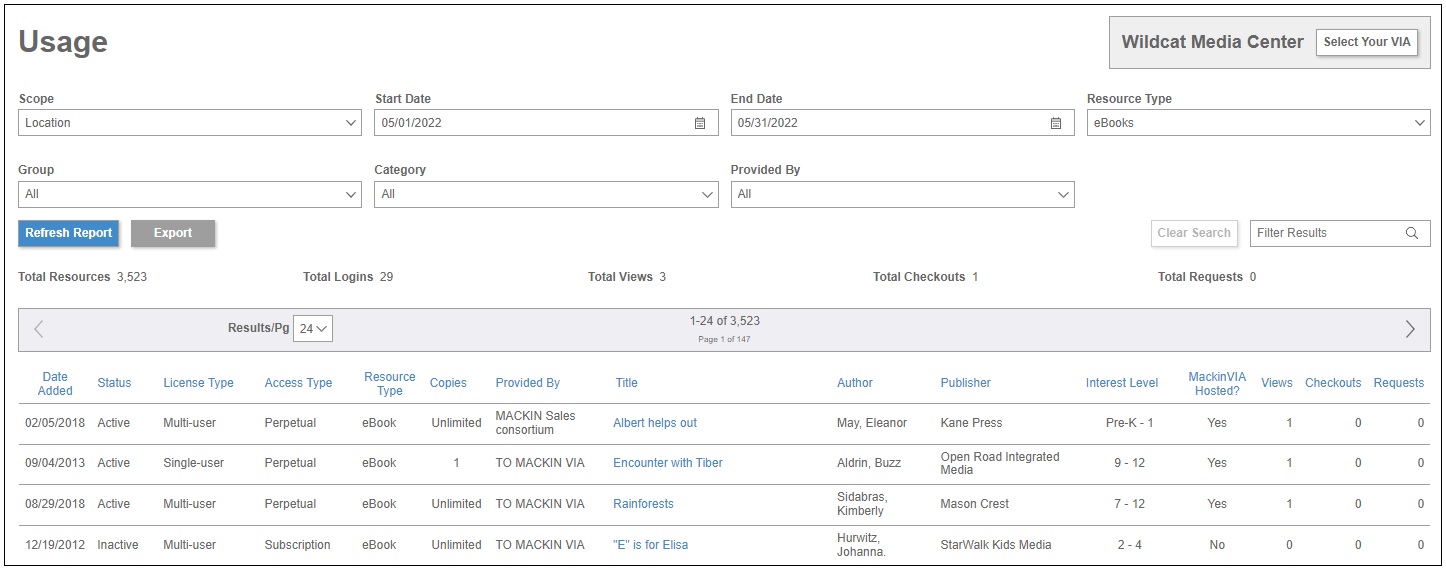
Administrators can run a report by Group, Category, Provided By and Resource Type over a specified date range. This report displays statistics per title. By default, it includes status, license type, resource type, copies, ISBN, views, checkouts, requests, and average requested wait time for each resource. In addition, the total number of resources, logins, views, checkouts, and requests for the location are included.
Screen View
Excel View
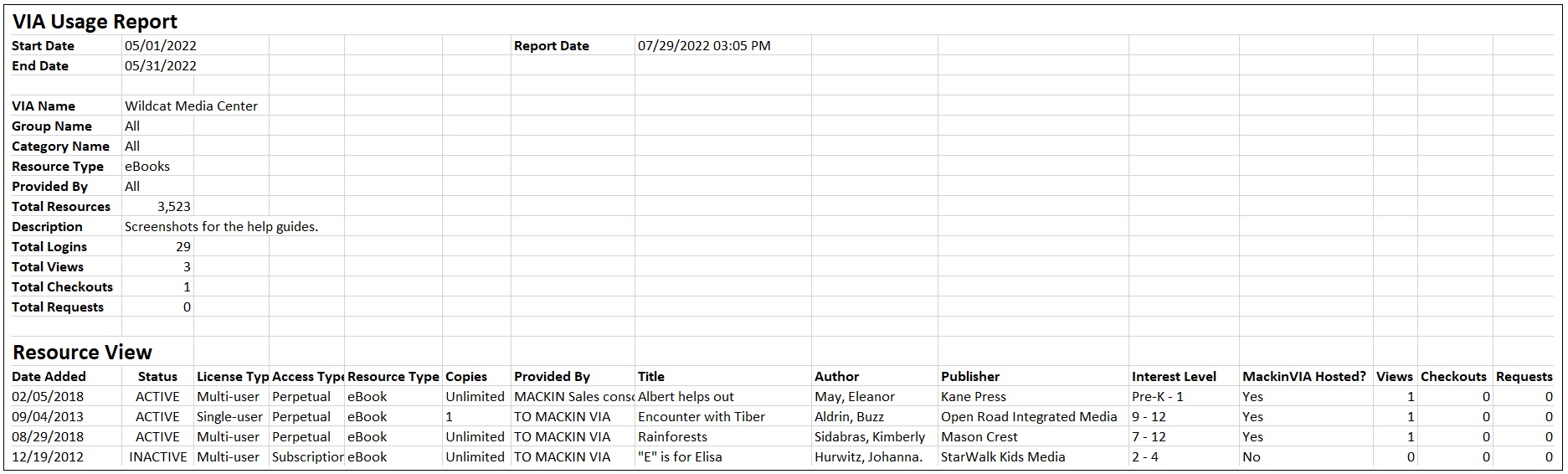
Location Statistics:
- Total Resources: Total number of the specific resource type.
- Total Logins: Total number of times patrons logged into VIA.
- Total Views: Total number of times patrons clicked “Open Now” on resources.
- Total Checkouts: Total number of checkouts. This number will include online reads of any Mackin-hosted resources.
- Total Requests: Total number of requests.
Resource Statistics:
- Date Added: Date the resource was added to VIA.
- Status: Whether a resource is currently active, inactive or expired in the VIA.
- License Type: Single-User or Multi-User.
- Access Type: Perpetual, Subscription, 26 Checkouts, or 52 Checkouts/2 Years.
- Resource Type: eBooks, Audiobooks, Databases, Videos, Links, or All.
- Provided By: Purchasing Entity.
- Classification: If a resource is Fiction or Nonfiction.
- MackinVIA Hosted?: If yes, resource will open with the MackinVIA™ Reader. If no, it may be hosted by a different platform and include different features.
- Views: Number of times patrons clicked “Open Now” on the resource. (Please note-Opening a title that is checked out will also count as a view.)
- Checkouts: Number of times the resource was checked out.
- Requests: Number of times the resource was requested.
- Avg. Req. Wait Time: The average time in the request queue before the resource is available to check out.
For information on how to run the report, please see Usage Reports for Single Location.
Multiple Locations:
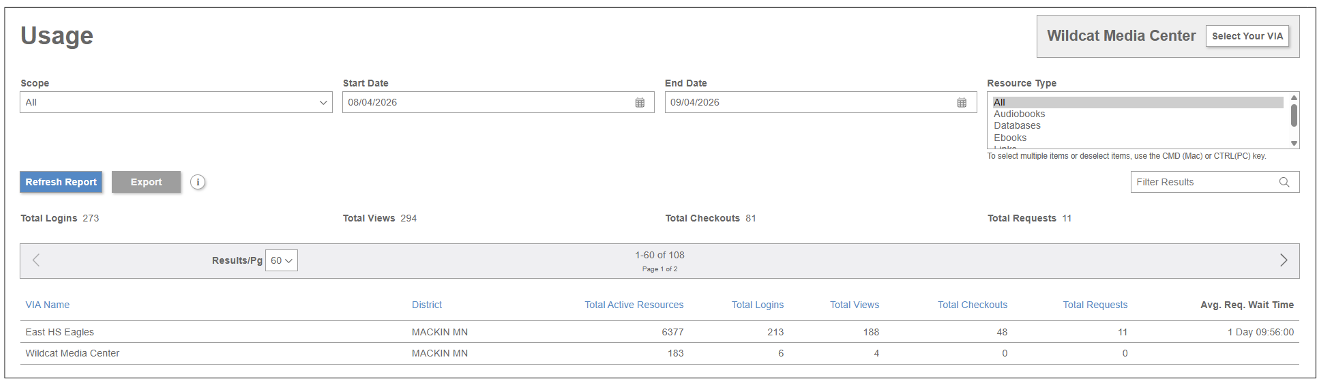
Administrators who have access to more than one MackinVIA account can run a report by Resource Type over a specified date range. This report displays statistics per location.
Screen View
Excel View

- Resource Type: eBooks, Audiobooks, Databases, Videos, Links, or All.
- Total: Total number of the specific resource type.
- Active: Total number of active resources.
- Viewed: Total number of resources that were viewed.
- Total Logins: Total number of times patrons logged into VIA.
- Total Views: Total number of times patrons clicked “Open Now” on resources.
- Total Checkouts: Total number of checkouts.
- Total Requests: Total number of requests.
- Avg. Req. Wait Time: Average amount of time a patron has to wait for a specific resource type.
For information on how to run the report, please see Usage Reports for Multiple Locations.
Usage Reports for Assigned Resources
For usage purposes, when assignments become active, assigned resources are treated as checkouts to the members. They will be counted on usage reports as checkouts.